Want to double-check your invoice before sending it out? Now you can preview any invoice as a full PDF render right inside the app. Click the Preview button on any invoice detail page and a slide-over panel shows exactly how the final PDF will look — complete with your business details, client info, line items, taxes, and payment status. If everything looks good, hit Download PDF to save it directly from the preview. No more downloading first just to check formatting.
How to get started
- 1Go to Invoices from the left sidebar
- 2Click on any invoice to open its detail view
- 3Click the Preview button in the dock at the bottom of the screen
- 4A slide-over panel opens showing the full PDF render
- 5Review the layout, line items, taxes, and totals
- 6Click Download PDF in the top-right corner to save the file
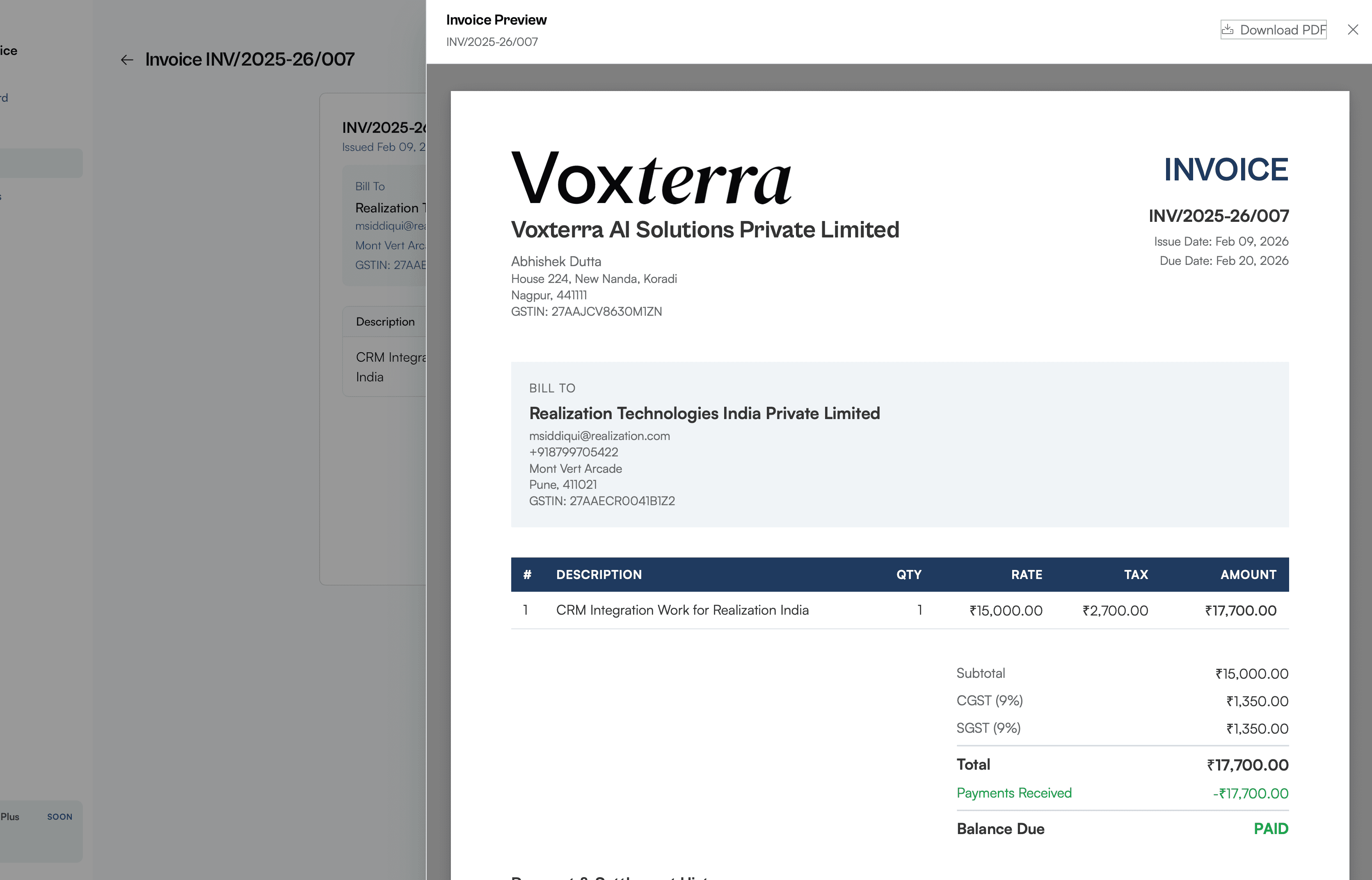
Invoice preview panel showing the full PDF render with business details, line items, taxes, and payment status